


 It's a straight forward yet comprehensive spam filter for Outlook combining Bayesian filtering with smart white lists and works with all accounts...
Heinz Tschabitscher, email.about.com
 I'm very pleased with Spam Reader - it does a better job than built-in Outlook junk mail filter. I receive much spam and your product is a big help for me.
David Solomon, www.solsem.com
Great Product! This is the only spam filter I've used that actually reduces my spam in a helpful, effective and reliable manner! I highly recommend this software!
Scott Johnson
[Q] I have successfully installed Spam-Reader and it has been working for quite a while. But now I cannot get spamreader to show itself anymore.
[A]
Check "Disabled Items" list:
Outlook 2003: Help->About Microsoft Outlook->Disabled Items
Outlook 2007: Help->Disabled Items
Outlook 2010-2024: File->Options->Add-Ins
If Spam Reader is present there then you should remove it from this list.
[Q] I’d like to look through the filtered spam messages from time to time. Are they not deleted? Where can I find them?
[A]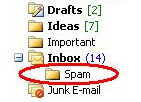 All the filtered out messages are stored in Spam folder. You can find Spam folder location on General tab of the program options.
Usually it's placed under Inbox like subfolder.
All the filtered out messages are stored in Spam folder. You can find Spam folder location on General tab of the program options.
Usually it's placed under Inbox like subfolder.
[*In Outlook 2000 this folder tree might be hidden. To see it you should do View->Show Folder View.]
Spam Reader never automatically deletes messages in this folder so you can check them whenever you want.
Also Spam folder could be mistakenly deleted and moved to "Deleted Items". Please make sure it isn't there. If yes then just move it under Inbox.
-----
[Q] I have successfully installed Spam Reader on my computer but after the installation I cannot find Spam Reader Menu (or Toolbar). What should I do to make Spam Reader interface appears?
[A] If you cannot see Spam Reader interface components you can do the following steps:
1. Make sure all instances of Outlook are closed before installing (Task Manager should not show OUTLOOK.exe process)
2. Make sure Spam Reader is not disabled by Outlook:
Outlook 2003: Help->About Microsoft Outlook->Disabled Items
Outlook 2007: Help->Disabled Items
(Help->About->Disabled Items...)
Outlook 2010-2024: File->Options->Add-ins->Manage "Disabled Items"->Go..
3. Outlook Security Policy allows to use add-ons: menu->Tools->Trust Center:
"Marco Security": security level should warn but allow running macros
"Add-ins": clear check box "Apply macro security settings to installed add-ins".
4. Check Tools->Options->Other->Advanced Options->Add-In Manager.... Spam Reader's record should be there and checked ON.
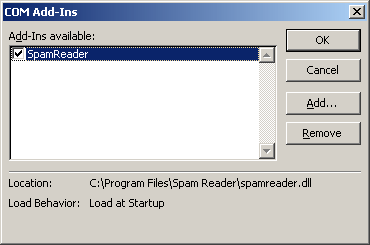
• In the list of available add-ins select "Spam Reader" and click "Remove" button.
• On "Advanced Options" dialog click "Add-In Manager..." button. The following dialog will appear.
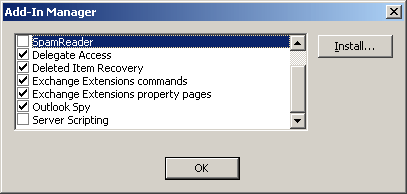
• In the list of add-ins unmark "Spam Reader" checkbox and click "OK"
• Close and restart Outlook.
• Open (as above) "COM Add-Ins" dialog and click "Add..." button
• Select C:/Program Files/Spam Reader/spamreader.dll and click "OK". Spam Reader add-in will be added to the list of Microsoft Outlook add-ins.
• Mark "Spam Reader" checkbox in the list of available add-ins and click "OK".
-----
[Q] Spam Reader interface disappears when I close and then restart MS Outlook during the same Windows session and appears again only if I reboot the computer. What could be the reason?
[A] Apparently, you use Microsoft ActiveSync, which prevents complete closure of Microsoft Outlook. You can check this in the following way. Close Outlook and then open Task Manager Window (Ctrl + Shift + Esc). If you find "OUTLOOK.EXE" in the list of processes on the Processes tab of Task Manager this means that MS Outlook is not closed. Spam Reader will appear on the next start of Microsoft Outlook if you terminate the process "OUTLOOK.EXE". You can also take your PDA out of the cradle before closing Outlook then ActiveSync will not prevent the complete closure.
-----[Q] When I try to mark Spam Reader checkbox in "COM Add-Ins" dialog, marking always disappears after clicking "OK". What should I do to start using Spam Reader?
[A] Microsoft Outlook is very likely set not to trust plug-ins. You can ask your Administrator to set the computer to trust Spam Reader, or you can manually change this policy -
you should open the key "HKEY_CURRENT_USER/Software/Microsoft/Office/11.0/Outlook/Security"
( or "HKEY_CURRENT_USER/Software/Microsoft/Office/10.0/Outlook/Security" for Outlook XP users)
and set the "DontTrustInstalledFiles" value to 0.
-----
[Q] Spam Reader doesn't automatically filter out spam messages on Microsoft Exchange account. But when I check these messages using "Test Message" button, Spam Reader recognizes spam.
[A] Apparently, you use Microsoft Exchange in Cached Mode. In this case, Spam Reader simply doesn't receive notifications about incoming messages. You need to switch off Cache Mode.
-----[Q] I want to move Spam Reader's settings to another computer
[A] To move Spam Reader's settings to another computer you need to do the following:
1. Open Registry Editor (Run->regedit.exe) and export
"HKEY_CURRENT_USER\Software\LuxContinent\" branch to .reg file.
2. Save all files from folder
"%APPDATA%\LuxContinent\Spam Reader".
Backup all files from 1. and 2. to any safe location. After reinstalling system you need to install Spam Reader and then:
1. Restore .reg file to the registry
2. Copy corresponding files to
"%APPDATA%\LuxContinent\Spam Reader" folder.
-----
[Q] How can I completely remove Spam Reader from my computer?
[A] To remove Spam Reader from your computer completely manually your should do the following operations:
• Close Microsoft Outlook;
• Delete all the files in ".../Program Files/Spam Reader" folder;
• Delete the following keys from the registry:
HKEY_CURRENT_USER/Software/LuxContinent/Spam Reader,
HKEY_LOCAL_MACHINE/Software/LuxContinent/Spam Reader.

 Free Version
